

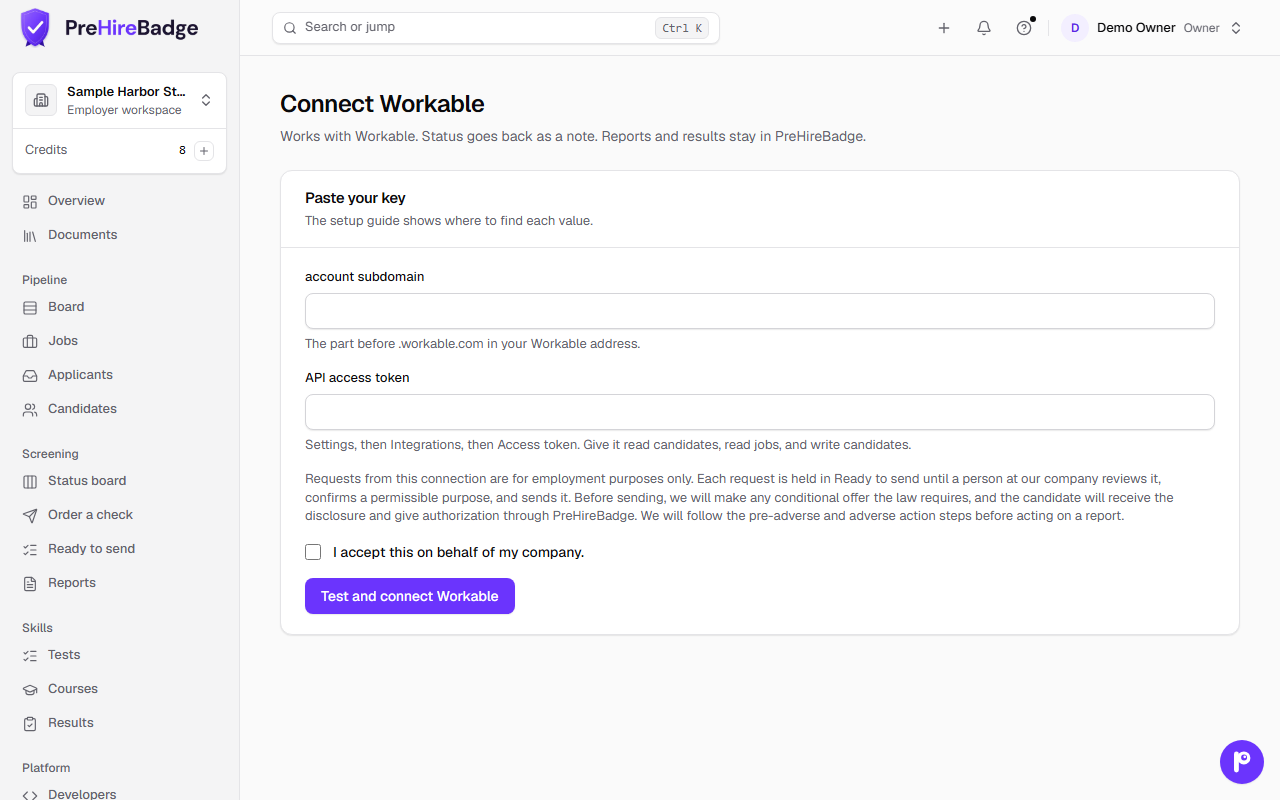
Works with Workable. When a candidate reaches a stage you choose, PreHireBadge creates a check request in Ready to send. A person on your team confirms and sends it. When the check is complete, Workable gets a status note posted as a comment by the first admin on the account. Reports, results, and AI summaries stay in PreHireBadge.
Who it is for. An owner or admin who uses Workable to manage candidates and wants check requests to start from the hiring pipeline without switching tools.
How to connect
- In Workable, open Settings, then Integrations, then Access tokens. Create a token with the read candidates, read jobs, and write candidates permissions.
- In PreHireBadge, open Settings, then Integrations, find Workable, and choose Connect. Paste your Workable subdomain and the token, then accept the integration certification.
- Pick the stages that should request a check, your default work location, and the default pay band.
What Workable receives
PreHireBadge posts a status note as a comment on the candidate in Workable. It looks like this:
PreHireBadge background check: Clear. Updated Nov 10, 2026. Check 0B6F2B1E. Sign in to view: …
Workable never receives the report, results, AI summaries, or resumes. Disqualified and hired statuses come straight from Workable; PreHireBadge reads them to run the adverse action watchdog.
Instant updates and the five-minute check
When a check finishes, PreHireBadge posts the status note to Workable right away. A background check also runs every five minutes and picks up any changes the instant update may have missed.
A person sends every check
When something fails
Settings, then Integrations, lists each connected app. The Activity card shows recent requests. Each error includes a short fix. Common problems:
- The hiring tool did not accept the saved key. The token may have been revoked, may be missing permissions, or the subdomain may not match your Workable account URL. Create a new token in Workable if needed, then Disconnect and connect again with the new key and subdomain.
- The hiring tool refused a request. A stage you chose may have been renamed or removed in Workable. Reselect the stages in the Setup section on the integration page.
Disconnect there to stop the integration. Requests already waiting in Ready to send can still be dismissed.
See Integrations and the FCRA and adverse action watchdog for more on how connected hiring tools work with PreHireBadge.