

Gemini CLI can ask about checks, jobs, and applicants after an owner or admin approves the connection.
Who it is for. An owner or admin connecting Gemini CLI.
Connect Gemini CLI
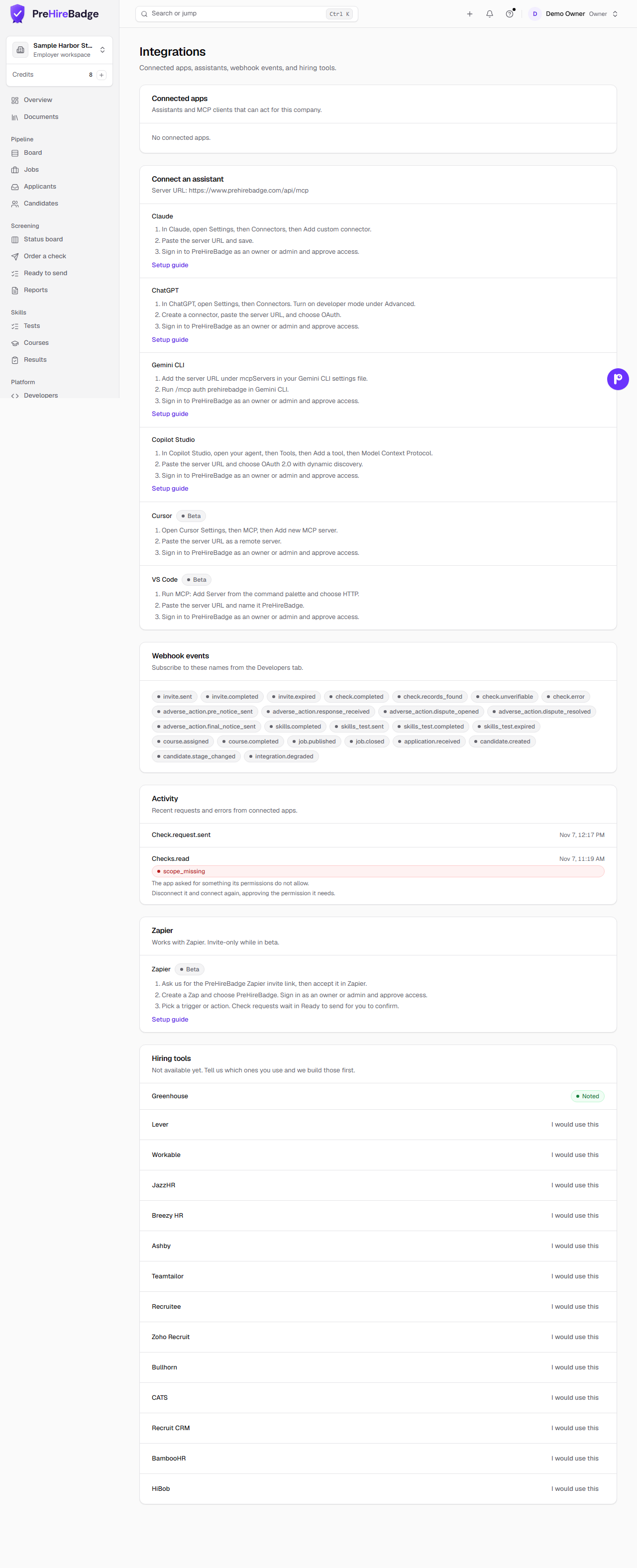
- Add the server URL under
mcpServersin your Gemini CLI settings file. - Run
/mcp auth prehirebadgein Gemini CLI. - Sign in to PreHireBadge as an owner or admin and approve access.
{
  "mcpServers": {
    "prehirebadge": {
      "httpUrl": "https://www.prehirebadge.com/api/mcp"
    }
  }
}
What the assistant can see
With the permissions you approve, it can read check status, jobs, and applicants, and it can change jobs, candidates, and notes when you confirm. The full list is in MCP tools.
What stays in PreHireBadge
The assistant never sees reports, results, resumes, or AI summaries. Record detail is not included.
Disconnect
Open Settings, then Integrations. Disconnect turns off every token for that app.