

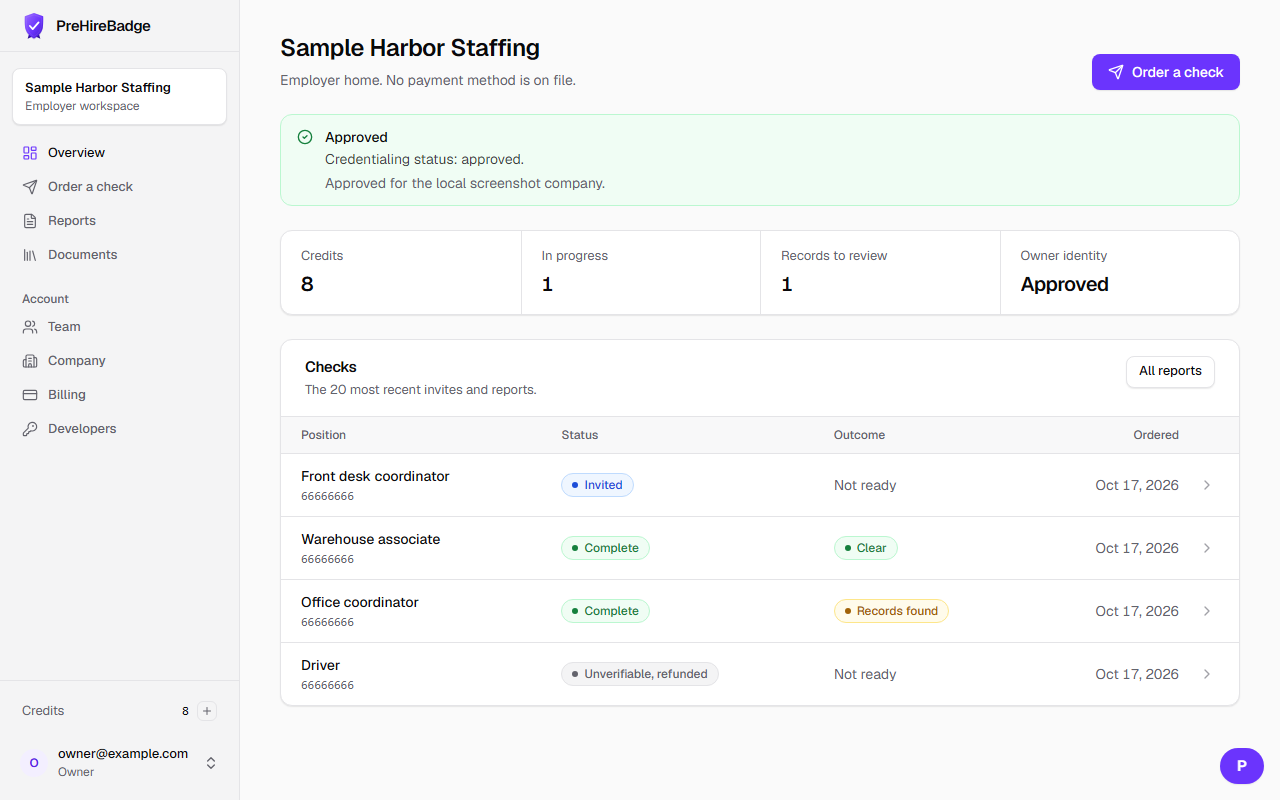
The dashboard is the employer home screen after you sign in.
Who it is for. Anyone on the company account. What you can open still depends on your role.
- Read the credentialing banner first. Pending means invites are allowed and searches are not.
- Open Status board to see Pending, Clear, Records found, Adverse action open, Expiring, and Lapsed. The bell lists invite, report, and adverse-action notices. Contact support opens a ScreenForge ticket. Support replies is a separate bell for those ticket replies.
- Check the credit balance before you send another invite. A standard report uses one credit, priced at $5.
- Start a new invite from the order action. You still cannot type a candidate Social Security number there.
- Open a finished report only if your role is allowed to see report content. The screen states the outcome in plain language.
No hire score
The dashboard never says a person passed, failed, or is eligible. You read the report and decide.
If the banner still says pending, read get credentialed. To send the first invite, use the quick start.